Click the following link for instructions to:
Connect a Square Reader Using Bluetooth
Connect Square Reader for contactless and chip wirelessly through Bluetooth
To establish a Bluetooth connection, your Square Reader must be within 10 ft. of your mobile device. You also need to make sure your point of sale app is updated to the latest version, Square Reader for contactless and chip pairs to Square through the point of sale app.
- Press and release the button on your reader to turn it on.
- Open the Settings app on your device and toggle Bluetooth ON.
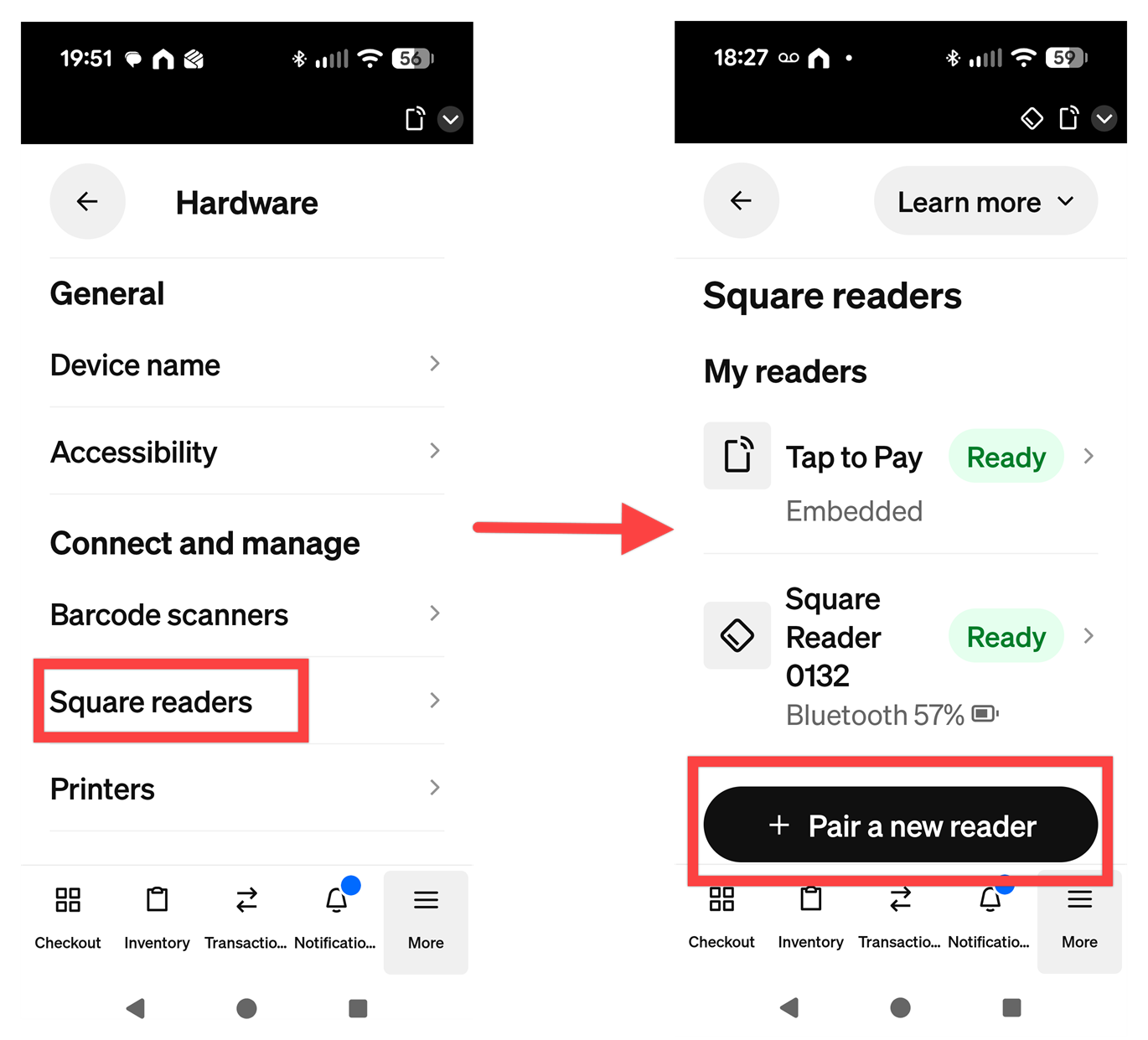
- Open your point of sale app and tap ≡ More > Settings > Hardware > Square Readers.
- Tap Connect a Reader.
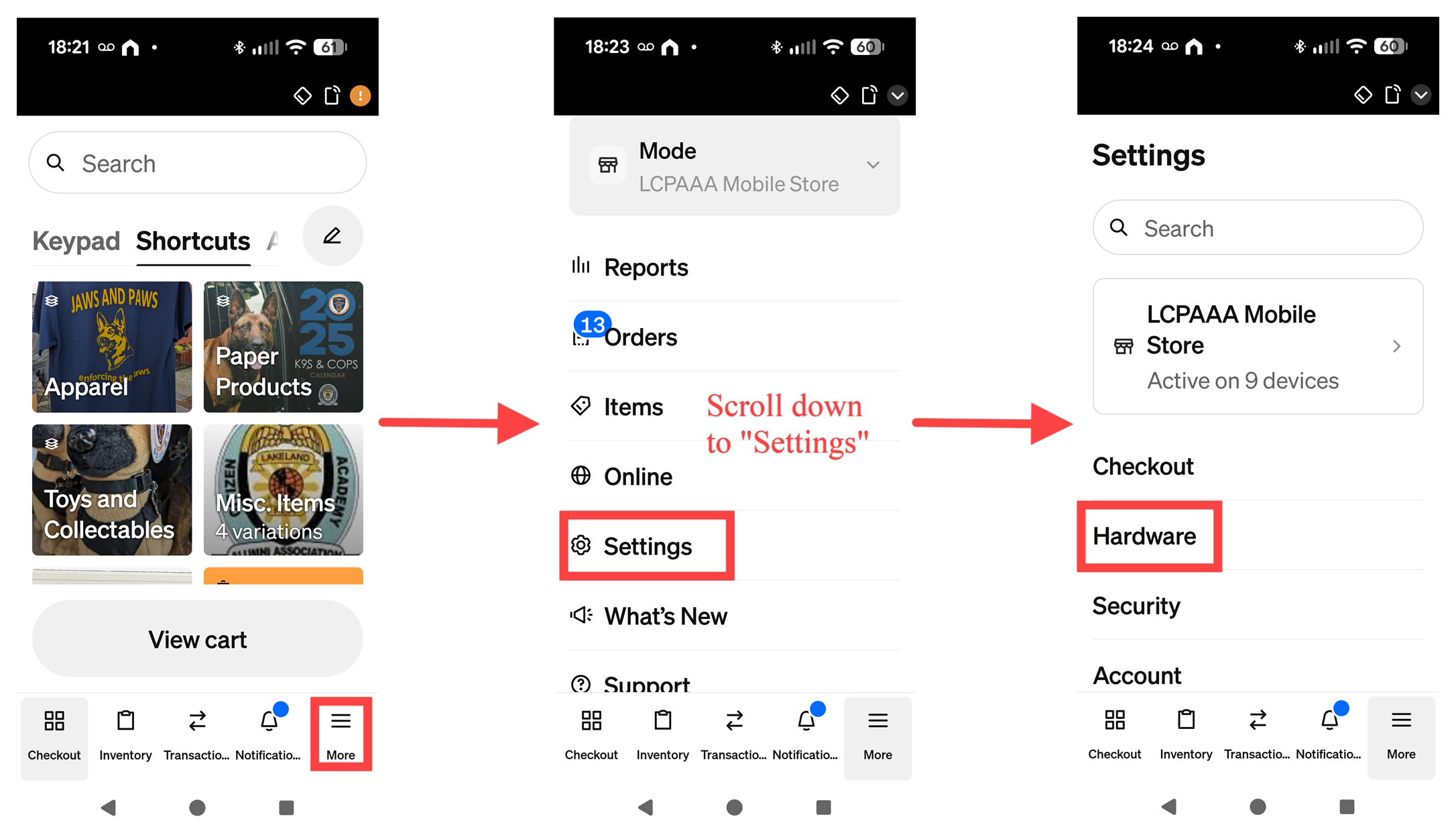
- Put your reader into pairing mode by pressing the reader’s button for three to five seconds. Remove your finger as soon as you see orange flashing lights. If you see red flashing lights, you’ve held the button too long and you’ll need to try again.
- Four orange lights flashing: Reader is in pairing mode.
- Four green lights: Reader has successfully paired.
- Four red lights: Reader failed to pair.
- Tap Pair on the notification from your point of sale app to complete the pairing process.
- Note: Due to extended security measures, some Android devices will require multiple confirmations during the pairing process.
- On Android devices, quickly tap Pair and Pair & connect each time you are prompted until the connection is successful. If the connection fails, start the pairing process over and make sure to accept all Pair and Pair & connect prompts within 5 seconds.
- When your reader is successfully connected, you will see it listed as Ready in your point of sale app.
Any necessary firmware updates will be automatically installed once the reader has been connected. The wireless connection can be lost if the reader and device are more than 10 feet apart.